
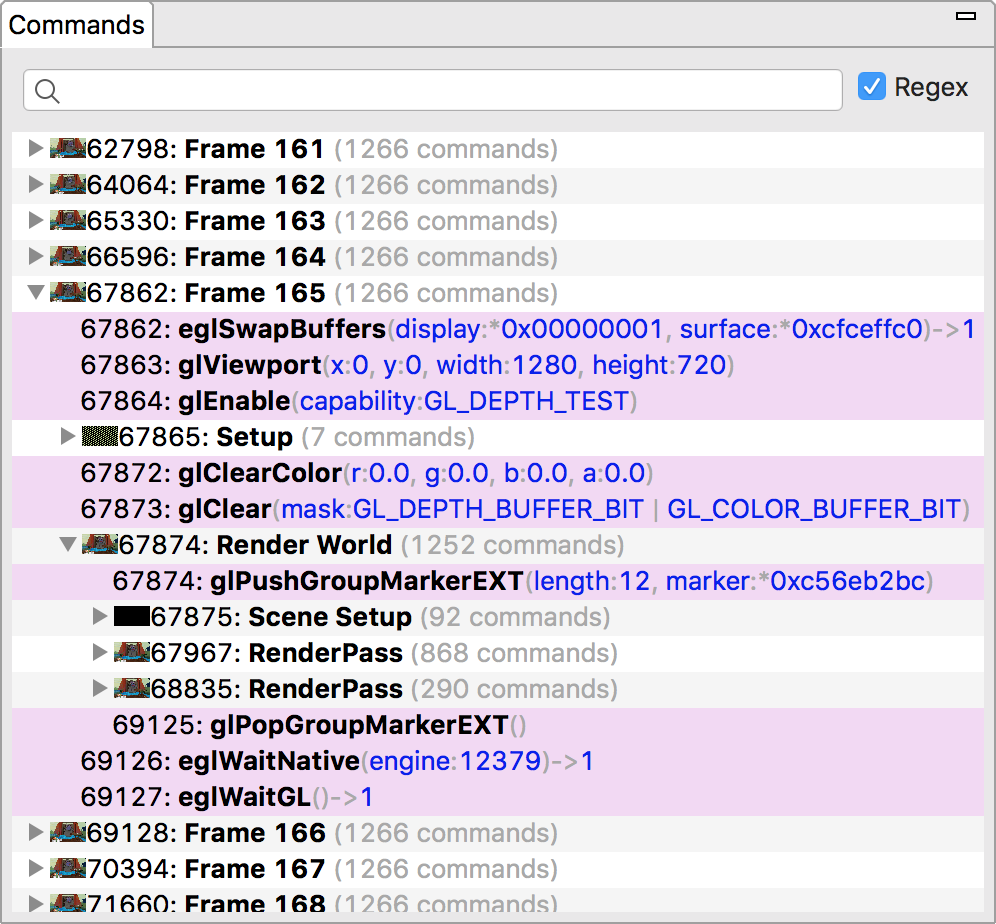
The commands pane displays the calls made by the application, grouped by frame and draw call or by user markers.
Clicking on a command or group will update other panes to reflect the state after the selected command / group.
You can perform the following operations in the Commands pane:
- To expand or collapse an item in the call hierarchy, click
 or double-click the item.
 - To search for a command, type a string in the search field
 at the top of the pane, and then press Return. If you want to use a regular expression search pattern, select
  . To find the next occurrence, select the search field and press Return again.
 - To change argument values, right-click a function and choose Edit. In the Edit dialog, change one or more values in the fields, and then click OK.
- If you click an argument that refers to a state parameter, such as a texture ID, the State pane opens and shows you more information. If you click a memory address or pointer, the Memory pane opens and shows you that location in memory.
- To magnify a call thumbnail, hover your cursor over it. The thumbnail appears to the left of a call.
- To copy values from the display, select the items to copy and then press Control+C or Command+C. You can then paste the information into a text file.
Debug Markers
Depending on your app, the Command pane can contain a very long list of commands within one frame. For better navigation and readability, you can define debug markers that group calls together under a heading in the tree.
OpenGL ES has the following APIs to group commands:
| Extension / Version | Push | Pop |
|---|---|---|
| KHR_debug | glPushDebugGroupKHR() |
glPopDebugGroupKHR() |
| EXT_debug_marker | glPushGroupMarkerEXT() |
glPopGroupMarkerEXT() |
| OpenGL ES 3.2 | glPushDebugGroup() |
glPopDebugGroup() |
Vulkan has the following APIs to group commands:
| Extension / Version | Push | Pop |
|---|---|---|
| VK_EXT_debug_marker | vkCmdDebugMarkerBeginEXT() |
vkCmdDebugMarkerEndEXT()` |